iCloud Activation Lock Guide
If you bought a used iPhone, iPad, or iPod and the device stops at the Activation Lock screen, this guide explains what that lock means, how to check the status, and which OpenMyIcloud option fits your setup. Start on the OpenMyIcloud homepage when you are ready to download tools or compare plans.
What Activation Lock Does
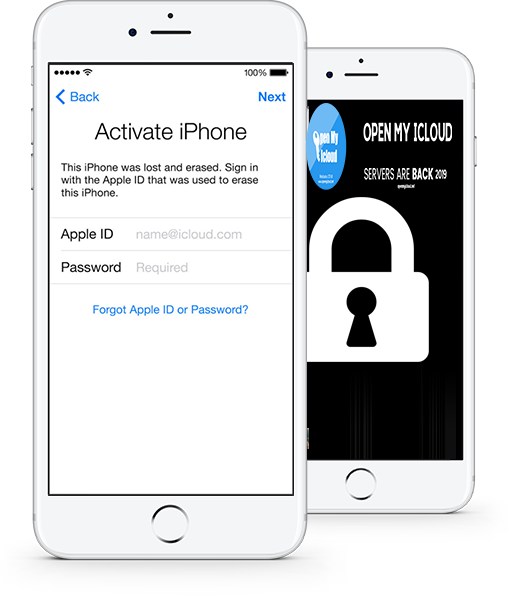
Activation Lock ties the device to the Apple ID that was signed in before a reset. The lock stays on until the correct account password is entered or an approved removal method completes. You will usually see a message asking for the previous owner’s Apple ID after setup begins. Write down the exact wording and your iOS version before you contact support.
Check the Lock Before You Buy or Unlock
On a device you can open, go to Settings, tap your name, then look for the device in the list to confirm which Apple ID is linked. If the phone is still on the hello screen, ask the seller for proof of purchase and whether Find My was turned off. For IMEI-based checks, read our IMEI unlock article on iCloud News. Only proceed when you own the unit or have written permission from the owner.
Choose Tool or Activator
OPEN MY ICLOUD Unlocker Tool runs on your Mac or Windows PC as an offline script. Use it when you want a local workflow without live server registration. OPEN MY ICLOUD Server Activator runs online and talks to your device through iTunes or Finder after you register and enter the server IP we provide. The homepage iCloud Unlock comparison section shows screenshots and download links for both paths.
Prepare Your Computer and Cable
- Install the newest iTunes (Windows) or use Finder on macOS Catalina and later.
- Use an Apple-certified USB cable and a USB port directly on the computer, not a loose hub.
- Disable sleep mode on the laptop until the session finishes.
- Download the package from the OpenMyIcloud business portal.
- Follow the numbered steps on How it works on the main site.
When to Read FAQ or Contact Support
Error codes, frozen progress bars, and repeated reboot loops are covered in the OpenMyIcloud FAQ and support page. Search there first for your model and iOS version. If the device still fails after you tried both Tool and Activator flows, send the IMEI, iOS build number, and a photo of the lock screen through the support form linked on that page.
Return to the OpenMyIcloud homepage for download tiers, partner offers on free builds, and links to video tutorials on our social channels.